top of page


Clone Hero Controller MIDI Kit Setup (PCVR)

This is not the tutorial for playing Clone Hero song folders in-game, but rather for using the VR drum kit as a MIDI controller, just like streamers do online live with their electronic drums kits to control the Clone Hero application itself. You can use the VR drum kit and SteamVR's desktop overlays in-game to play the desktop PC version of Clone Hero while using the VR drum kit as a drum controller. What you will need for this is listed below and free.
What You'll Need
1.) PC MIDI interface for communication. Don't have one? Make a virtual port ---> (MIDIMapper) and (VirtualMIDISynth)
2.) Active MIDI port on your PC. Don't have one? Make a virtual MIDI input port ---> (loopMIDI)
3.) Clone Hero installed on same PC.
1.) Install loopMIDI (Create A Virtual MIDI Port)
Install the loopMIDI program. We will select and use this virtual MIDI port in Clone Hero later. When the loopMIDI application is first started there are no virtual MIDI ports. Click the "+" button at the lower left of the application to create a virtual MIDI port. The virtual port is now ready and named "loopMIDI Port".

2.) Install VirtualMIDISynth
Most computers now days come with no support for MIDI on the OS. Install VirtualMIDISynth. Once installed right click the VirtualMIDISynth icon in the Windows task bar and click Configuration.

Click the MIDI Mapper tab and set the Default MIDI out device. This we will set to loopMIDI Port, the virtual MIDI port we just created in the steps above. You can now close this application, the virtual port is ready and we will later select it in Clone Hero.

3.) Start VR Drums Ult.
Start SteamVR and then start VR Drums Ultimate Streamer. Enter the main menu and find the MIDI tab. Check the checkbox to enable MIDI support and allow the game to send out MIDI notes. Take off your headset and you will see on your PC monitor screen the MIDI settings for VR Drums Ult. We only need to select where we will be sending MIDI notes too, use your mouse and select "CoolSoft MIDIMapper".

4.) Start Clone Hero
Install Clone Hero if you haven't yet. Start Clone Hero. When the game starts up it can be a little difficult to control without having a guitar controller connected but you can use your PC's keyboard. Press ENTER, the Player1 options will appear. Use the arrow keys on your keyboard to navigate the menu and the A key to select.
Select Controller...
Select Drums...
Select Input...
Once you select input scroll up or down with the arrow keys on your keyboard and find the "loopMIDI Port" the virtual MIDI port we made earlier with loopMIDI. Esc key to go back.
Now we have the MIDI port "loopMIDI Port" assigned for VR Drums to output notes to and Clone Hero to receive them.
Back to VR Drums Ult.
Now we have Clone Hero MIDI port setup, we will need a way to see our PC screen inside of VR, so that we can see the Clone Hero game while in VR Drums. To do this while you are in VR Drums Ult. on your left controller, press the Menu button. SteamVR's menu will appear. In the lower left click the Desktop button. You will see your PC desktop screen now in-game. Mount the screen. Mounting/Pinning the screen is required so that when we exit the SteamVR menu, our desktop screen will still be placed in our game when we exit the Steam menu. Move the screen anywhere you want by pressing the move button at the bottom of the screen with your VR controllers grip/trigger button. Once you have the screen where you like we need to "Pin" the screen by pressing the "pin/mount" button at the bottom of the screen.
Now that our screen is pinned it will remain in game, exit the Steam menu by pressing your left controllers Menu button again.
Setting Up Drums In Clone Hero
Lets go back to Clone Hero. Enter the player menu we were in before, press the enter key and use the keyboards arrow keys to find the controller setup.
Clone Hero will then ask you to hit what drum you want to use for each color. We will have our VR headset on for this step and navigate and see the Clone Hero menu with our pinned desktop screen in-game. Below is a color legend of the standard colors used in Clone Hero and a standard setup, but you can hit whatever drum you want to use if you wish.
Yellow Hat
Green Crash
Red Snare
Blue Tom/Ride
Enable "Guides" in the drum builder tab. It will highlight each drum and cymbal for you with the correct Clone Hero note color.


Calibration Tool
Click anywhere in the Clone Hero menu/background to go back to the main menu.
In the main menu select Settings. Select CALIBRATION TOOL.
When the calibration tool starts, you will hit the VR drums in VR Drums Ult. to the beat Clone Hero starts playing.
The VR drums are now set to the color notes that you hit and will be used in Clone Hero, so the VR drums will now also work as navigating the menus (blue, yellow, red, green keys) to the drums you set, so be careful not to hit them again after the calibration process or it will make you do it again. When you are done press the A key on your keyboard to enter the next calibration step.
The second calibration step will have you hit the VR drum kit in VR Drums Ult. to an scrolling visual note highway. Align the incoming lines with the beat/lines. Play naturally how you would in-game for best results.
When you are done press the A key on your keyboard. Calibration is done and offset is now set for you.
Auto calibration is a close sync. Enter the Clone Hero main menu > Settings > Adjust the video delay % to align your hits if the auto calibration is off by a bit. You are ready to play.
Recording Process
You can capture both the VR Drums Ult. screen and Clone Hero in OBS. Capture two separate windows side by side or see other options below.
If you want to capture your VR view that includes the SteamVR pinned Clone Hero desktop screen, you can use Oculus Mirror. https://developers.meta.com/horizon/documentation/native/pc/dg-compositor-mirror/
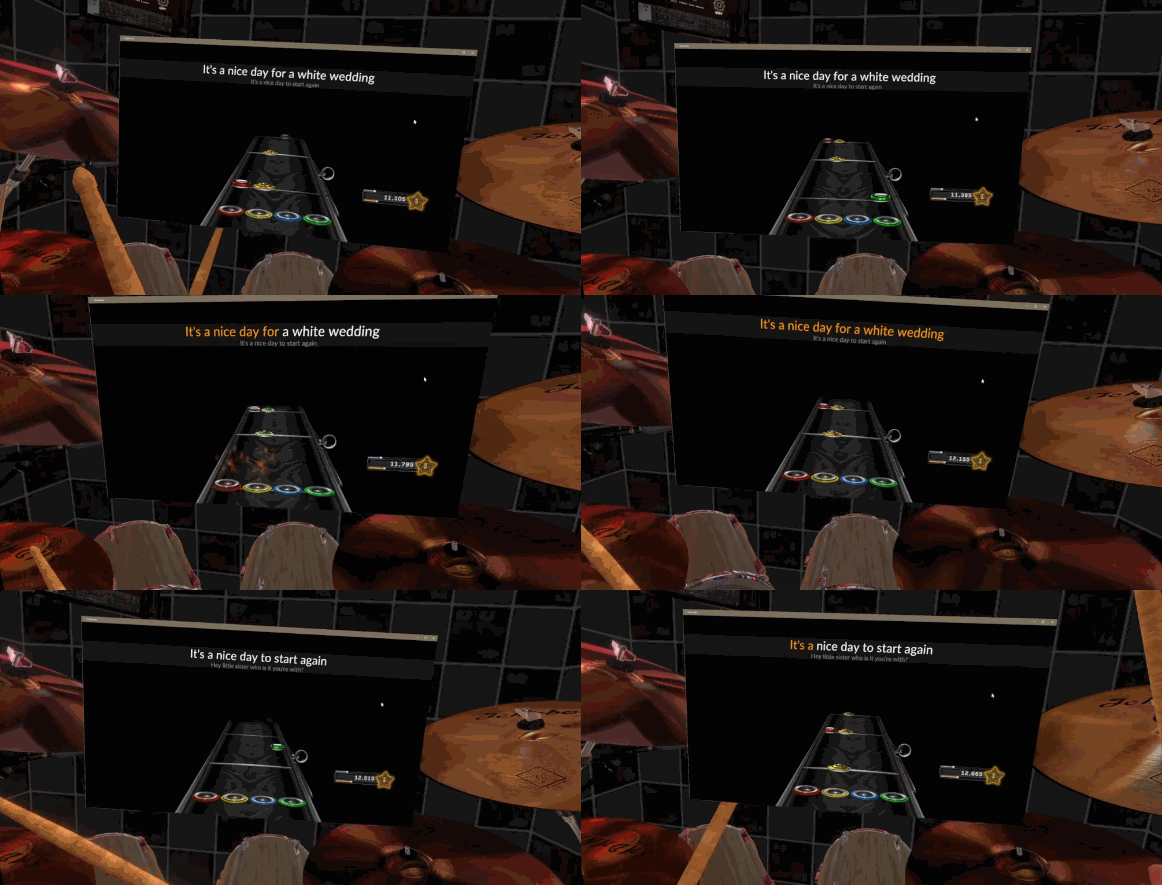
Oculus mirror will capture everything you see in your VR headset, including your pinned PC desktop screens. This method is shown below in an example image. Capture the Oculus Mirror window in OBS.
bottom of page